Before you begin
To enter your records, you need to have signed up for the Nesting Neighbours project. It's quick and easy to do.
If you have already signed up, log in to Nesting Neighbours data entry system using your MyBTO login email address or username and password.
Start a new record
A "record" is the set of information that you collect about one nesting attempt.
- If a nest box is used two years in a row, you will collect two "records" for this box - one for each new nest.
- If a nest box is used to raise two broods of young by the same adult pair in one breeding season, you will collect two "records" for the box - one for each new nesting attempt.
Only create a new record if there is a new nesting attempt in the box or nest site. If you have already submitted information about the nest you are recording, you should add your latest observations to the records you've started instead.
When to start a new record
You should start a new record every time a new nest is started or found. This means if you're monitoring a nest box and a new nest is built in it or a new clutch of eggs laid, even during the same breeding season, you should start a new record rather than adding more visits to an existing one.
What about if you're monitoring a box that hasn't been used yet this year? In that case, please start a new record at the beginning of the year, rather than adding more visits to last year's record.
Watch our video tutorial about starting a new record or follow the written instructions below for step-by-step guidance.
How to start a new record: video tutorial
This video tutorial takes you through the process of starting a new record in the online data entry system.
How to start a new record: written instructions
Log in to Nesting Neighbours, then select "Start new nest record" from the options on the home screen.
1. Choose the nest location
For a nest in a new location:
- Open the "Location of nest" dropdown and select "In a new location".
- A map will pop up where you can select your location – this is the general area you will be recording nests; for example, your garden, the local park, or your work car park. You can zoom the map to an area by entering either the postcode or a 1km grid reference.
- Click the centre of the location where you would like to record your nest, and enter a friendly name for your location that is easy for you to remember - for example, ‘Garden’, ‘Local park’, ‘Work’.
- Save the nest location. This will take you back to the data entry page.
If the nest is at a location you've told us about before, but in a new box or place:
- Open the "Location of nest" dropdown and select the correct location from the options that appear.
- Select "a new box" from the list that appears under that location name.
- Here you can select if the nest is "in a nest box" or a "nest (not in a box)". If you select "in a nest box", you will need to give the box a name to distinguish it from any other boxes in this location.
If the nest is in a box you've recorded before:
- Open the "Location of nest" dropdown and select "In a new location".
- Choose the location of the nest, then select the correct box from the list that appears.
2. Choose the species
After you have entered the nest location, you need to select the species from the species drop-down.
- If you are not yet sure of the species, you can select ‘Unknown species’. Make sure to update this once you do know which species is using the box, otherwise we cannot make use of the information.
3. Click 'Continue' to move on to the visit details page.
Add visit information
After you have entered the location and species of the nest you are recording and clicked 'Continue', you need to add visit details. Visit details include the date and time that you collected your records, as well as details of eggs and young and the stage of the nesting attempt.
How to enter visit details: video tutorial
How to enter visit details: written instructions
The date and time entered should be the day and time that you visited the nest, in format dd/mm/yyyy.
Information about eggs and chicks
The number of eggs and young should be as accurate as possible. Do not overestimate the number present, but instead put the minimum count. For example:
- If you know there were at least 3 eggs, but there could have been more, you can enter 3+.
- If you think eggs or young may be present, but you are not certain, you can enter ?.
Using status codes
Status codes are very valuable for building a picture of the nest. You can enter details of the stage of nest building, egg and young progress, parent activity and most importantly, whether the nest was successful or failed. Status codes should be used rather than free-text comments, because we cannot use free text for our research analysis.
Once the nesting attempt is finished
The most important piece of information to collect from a nest is whether it was successful (i.e. fledged at least one chick) or failed (e.g. the eggs failed to hatch). For example:
- If the nest is empty and it appears all of the young were able to leave, you can enter the status "Nest empty"
- If you have seen the young in the nearby area after leaving the box, you can enter the status "Fledged young near nest."
Add observations to records you've already started
A "record" is the set of information you collect about one nesting attempt. If you have made a new visit to a nest you have already submitted information for, you should add your observations to the existing record instead of creating a new record.
Add observations to records you've started: video tutorial
This video tutorial takes you through the process of updating, editing or adding information to an existing record.
- Remember to follow the guidance about entering visit details when you add to or edit records.
Add observations to records you've started: written instructions
- From the homescreen, select "Add observations to records you've already started" from the options.
- Find the record you want to update and select "Open". You can find records by filtering by location and/or year.
From here, you can:
- Add information to the record (for example, if you have conducted a new nest visit and have new information to submit)
- Edit information in the record (for example, if you realise you have made a mistake when you previously entered information).
Remember to follow the guidance about entering visit details when you add to or edit records.
Edit and update habitat and nest / nest box details
Nesting Neighbours gives you the option of adding extra information about the nest placement and surroundings. For example, you can add information about the number of trees and shrubs nearby, whether there are any bird feeders in the location of the nest, and the height of the nest or nest box from the ground.
Habitat and nest / nest box details: video tutorial
Nest / nest box details: written instructions
You will be prompted to add nest / nest box details to the nest when you start a new nest record. However, you can also edit or add to these once you have set up your record.
How to edit or update nest / nest box details
- Select "Habitat and box details" from the homescreen
- Choose the location of your nest / nest box from the dropdown list
- Select "Nest boxes" to open that section
- Choose the nest box you want to add details for from the dropdown list
- Input the correct information for each question
- Click "Save changes"
Nest / nest box detail options
- Box height: Height from the ground in meters.
- Predator protection: Protection implemented on the nest box. For example, there could be a metal plate around a nest box hole or a material placed around the box to deter woodpeckers.
- Exposure: Is the box fully exposed or hidden in foliage?
- Orientation: Is the box facing North, South, East or West? You may be able to use a compass on your phone if you are not sure.
- Over water: Is the box over a stream or river, or over the ground?
- Box Placement: The most common placement for a nest box would be on a tree. You can enter up to five descriptions of the box placement.
Archive a nest box
If you record a nest box that has been damaged, is broken, or has fallen off the wall / tree, you can select "Archive" when editing that nest's details. This will remove it from the nest box selection dropdowns across your Nesting Neighbours interface.
Habitat details: written instructions
You can add information about the habitat around the nest to the nest location. You can only add habitat details once you have started a new nest record and created the location of the nest.
How to edit habitat details
- Select "Habitat & Nest Box Details" from the homescreen
- Choose the location you want to add habitat details for from the dropdown list
- Select "Habitat details" to open that section and input the correct information for each question
- Click "Save habitat details" to make sure your changes are saved
Habitat detail options
- Primary habitat
- Size of location
- Roughly how many trees:
- Are there areas of dense creeper?
- Do you put food out for birds?
- How often do you see predators?
Further guidance
If you need help in the online Nesting Neighbours portal, have a look at the page you are on - often there will be a help button, or a pop-up window will appear when you hover the mouse over an item you are unsure about.
If you can't find any relevant help on the page, please get in touch at nestingneighbours@bto.org.
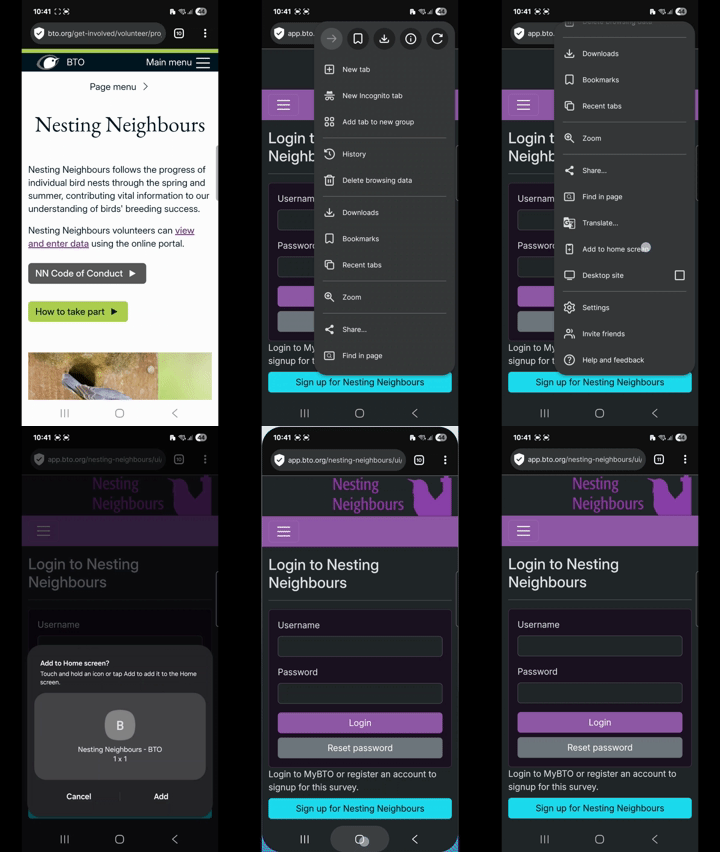
Add a shortcut to Nesting Neighbours on your mobile homescreen
- On your mobile device, open your usual web browser (e.g. Chrome, Safari, Ecosia, Samsung Internet etc).
- Go to https://app.bto.org/nesting-neighbours
- Click on the three dots at the top of the browser window
- Scroll through the menu that appears and select 'Add to home screen'
- Select 'Add' and then 'Add' again.
You will now have a shortcut on your home screen that you can use to quickly access Nesting Neighbours on your mobile.